 Bicamly
BICAMLY / IPHONE
How to record front and back cameras together on iPhone
Record your reaction and the scene in front of you in one Bicamly video, from permissions to saving.
Show me where to tap ↓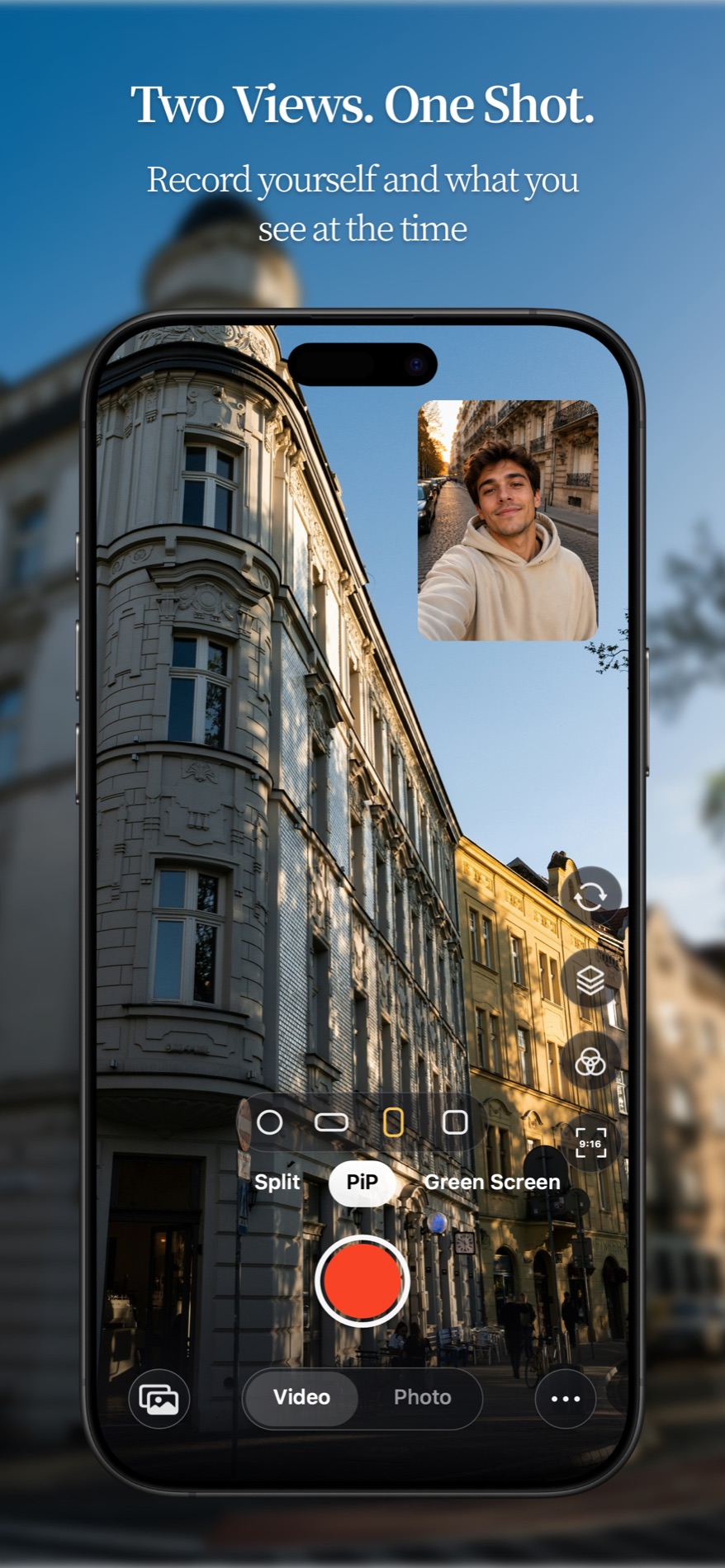
Follow the highlighted icons
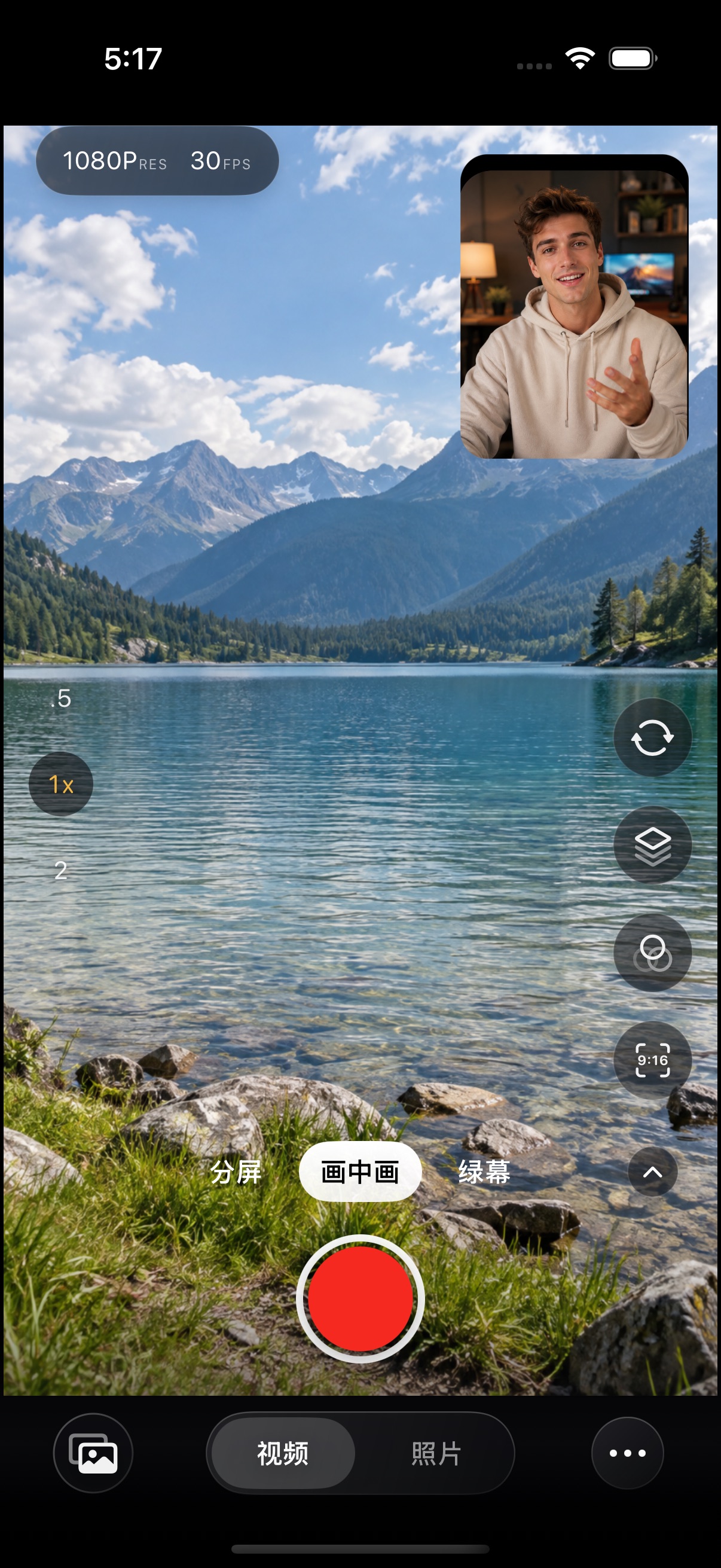
Real app interface captured in a simulator with demo photos. Screenshots show the Chinese interface; numbered callouts explain each control in English. Positions may vary with screen size and app version.
STEP 01
Locate three controls on the camera screen
After allowing camera and microphone access, check both views. 1: choose Split or Picture in Picture. 2: select Video at the bottom. 3: press the large red circle to start recording.
- 1 Choose a composition
- 2 Select Video
- 3 Red circle: start recording
Open full-size screenshot ↗ STEP 02
Swap the views or set output quality
The circular arrows on the right swap the two views. The resolution and frame-rate controls at the upper left set output quality; available options depend on the device.
- 1 Circular arrows: swap views
- 2 Resolution and frame rate
Open full-size screenshot ↗ STEP 03
Make a short recording and check the result
Use the stop control in the same position to finish and wait for saving. This screenshot shows the idle record button. Open saved media with the stacked-photo icon at the lower left, or play the video in Photos.
- 1 Stacked photos: open saved media
Open full-size screenshot ↗
Common questions
Why can’t I see both cameras?
Check camera permission in iOS Settings. Simultaneous capture also requires compatible hardware; a newer iOS version cannot add MultiCam support to an unsupported device.
Why is there no sound?
Check microphone permission and the app’s audio setting before recording a new sample. Play it back with the device volume turned up.
Do I need a custom template?
Start with the built-in composition modes. Custom templates are optional and require Pro.